|
All
C-Organizer entries supports categories. We've added this feature
for better visualization of your information. You can assign any
categories to the entry and then filter your entries by category.
All entries in the list can be filled with the first category
color, if this option is on (see the program's Options).
The
program allows you to edit existing or create new
categories.
Assigning Categories
When
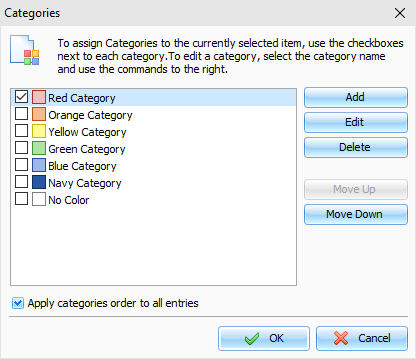
you assign a category to an entry, the "Categories" window will be
opened:
To
assign a category just mark a box at the left of the category name
and click the "OK" button. Marked categories will be assigned to
the entry.
In
this window you can customize your categories.
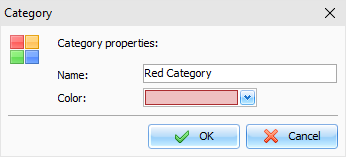
Click the "Add" or "Edit" button to add or edit a new category. This
dialog box will be opened:
Here
you can enter a category name and select category color.
To
delete a category, click the "Delete" button.
You
can change the categories order. Just select any category and click
the "Move
Up" or "Move Down" buttons.
If
the "Apply
categories order to all entries" option is on, new order will be applied to all
entries, otherwise each entry in the database will have own
categories order.
The
program allows to set up categories to multiple entries. Just
select several entries, then click the "Records -
Categories" main menu item and
choose categories. These categories will be applied to all selected
records.
Filtering by Categories
You
can filter your entries by category or categories. Click the
"Records -
Filter by Category" program
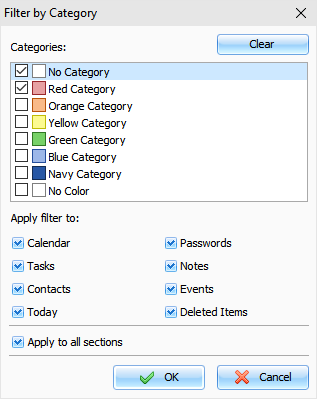
main menu item. A dialog box will be opened:
Here
you can mark categories for which you want to apply filter and
select sections, for which filter will be applied. Click the
"Clear" button to deselect all categories, if
necessary.
Then
click the "OK" button. Now C-Organizer will display only
entries, which has at least one of selected categories. If you
select the "No Category" option - all your entries without
categories will be shown.
To
remove filter, simply click the "Records - Filter by
Category" program main menu
item again.
|