|
To
add a new appointment press the "New
Appointment" button or double
click the empty area inside the viewing area. You can use
shortcuts Ins or Ctrl + N as well. Also you can create a new entry in the
List mode by entering data in the upper row.
To
edit an already existing entry press the "Edit" button or double click the record you want to
edit in the viewing area. Also you can use the Ctrl + Enter
shortcut.
When
starting editing a recurring appointment, you will see a dialog
box, which offers you to choose between editing the current
appointment or the whole series. Accordingly, the first option
creates a copy of recurring appointment and opens it for editing.
The second option will open the editing window for the whole
appointment series:
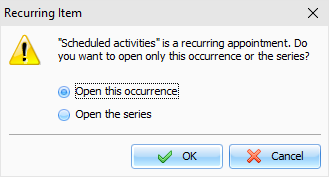
Dialog box for working with
appointments:
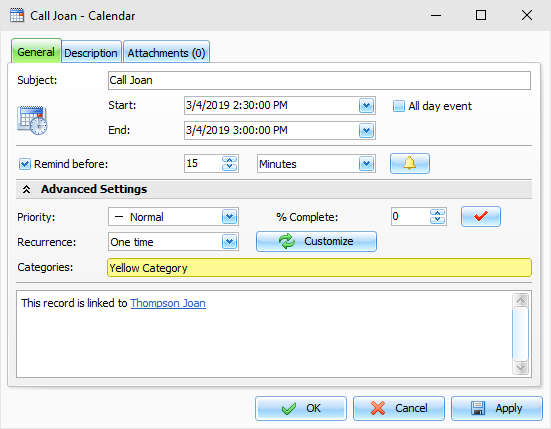
Fields description:
Subject - a records title.
Start date and time
when the appointment is
started.
End date and
time when the appointment has
to be completed.
All day event
- marked when the appointment is all
day event.
Below
you can see the notification
options:
Remind
before: here you can set a
time period when you should receive the appointment notification
(before it expires). Select a number of minutes, hours, days or weeks.
To
open Extended notification options, click the
 button to the right of
this field. button to the right of
this field.
Priority an appointments priority level. The following
priority levels are available: Highest, High,
Normal, Low,
Lowest, and Unknown.
% Complete this field allows you to track appointment
progress (percentage) or to mark the appointment as completed by
choosing 100% or by clicking the  button to the right of this field. button to the right of this field.
Recurrence these settings enable you to make any appointment
a recurring one. When you change the model or press the
"Customize" button, the extended
recurrence options window opens, giving you an opportunity to
select and set an appropriate recurrence template.
Categories here you can assign one or more categories to the
entry. See "Working with Categories" topic for more
details.
Description
use this field to enter an additional
appointment information and its description. The description field
supports rich text formatting (RTF), pictures, tables and hyperlink
insertion. See Working with text and descriptions topic more
for details.
Attachments
allows to attach any file to the
entry. All attached files will be stored directly in the database.
See "Working with Attachments" topic for more
details.
|