|
To
add a new task press the "New Task" button or double click the empty area inside
the viewing area. You can use shortcuts Ins or Ctrl + N as well. Also you can create a new entry in the
Tasks area by entering data in the upper row.
If
you would like to create a subtask, please click the
"New
Subtask" button and
C-Organizer will create a child task for selected entry.
To
edit an already existing entry press the "Edit" button or double click the record you want to
edit in the viewing area. Also you can use Ctrl + Enter
shortcut.
Dialog box for working with
tasks:
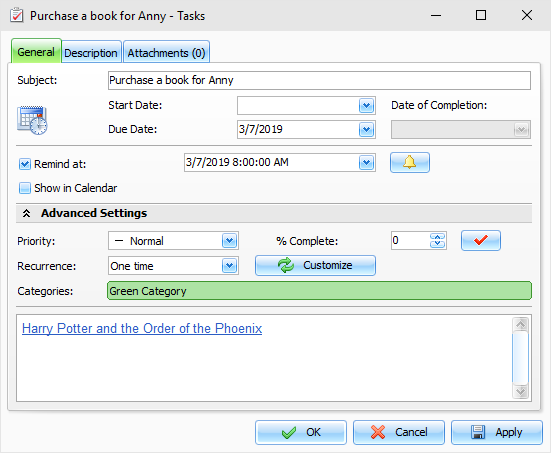
Fields description:
Subject - a records title.
Start Date - a date of starting the task.
Due Date - a date when the task has to be
completed.
While
creating a task you can omit entering this information or enter
just the Begin or End dates.
For
recurring task, make sure that you have entered the End
date.
Date of Completion
- a date when the task was actually
completed. This field is unavailable for editing, if the task
progress indicator is below 100 %. When the task is completed, the
date of completion is set automatically and the field becomes
available for editing.
Below
you can see the notification
options:
Remind at: here you can set up date and time when you
would like to get the notification about a task.
To
get access to the Extended notification options, click the
 button to the right of
this field. button to the right of
this field.
Show in Calendar
- this option is available when you
specify task's Start or Due Date. When this option is turned on,
the task will be shown with your appointments in the Calendar and
Today sections. You will see it directly in calendar, even if Tasks
Panel is turned off.
Priority - a task's priority level. The following priority
levels are available: Highest, High,
Normal, Low,
Lowest, and Unknown.
% Complete - this field allows you to track task progress
(percentage) or to mark the task as completed by choosing 100% or
by clicking the  button to the right of this field. button to the right of this field.
Recurrence - these settings enable you to make any task a
recurring one. When you change the model or press the
"Customize" button, the extended
recurrence options window opens, giving you an opportunity to
select and set an appropriate recurrence template.
Categories - here you can assign one or more categories to
the entry. See "Working with Categories" topic for more
details.
Description
- use this field to enter an
additional task information and its description. The description
field supports rich text formatting (RTF), pictures, tables and
hyperlink insertion. See Working
with text and descriptions topic more for details.
Attachments
- allows to attach any file to the
entry. All attached files will be stored directly in the database.
See "Working with Attachments" topic for more
details.
|