Home
C-Organizer Professional Online Help Prev Page Next Page
General information
About C-Organizer Pro
Features overview
Installation and system requirements
How to upgrade C-Organizer v3.x to further versions
Interface types and colors
Multilanguage interface
Information about updates
Working with C-Organizer Pro
C-Organizer Pro overview
How to share Data on a Network
Portable mode
Today
Today - Overview
Calendar
Calendar - Overview
Calendar - Adding/Editing appointment
Calendar - Deleting appointments
Calendar - Reminder
Calendar - Print
Tasks
Tasks - Overview
Tasks - Adding/Editing task
Tasks - Deleting tasks
Tasks - Reminder
Tasks - Print
Contacts
Contacts - Overview
Contacts - Adding/Editing record
Contacts - using templates
Contacts - Deleting record
Contacts - Reminder
Contacts - Print
Phone Dialer
Passwords
Passwords - Overview
Passwords - Adding/Editing record
Passwords - Deleting record
Passwords - Print
Passwords Generator
Notes
Notes - Overview
Notes - Adding/Editing note
Notes - Deleting note
Notes - Print
Events
Events - Overview
Events - Adding/Editing event
Events - Deleting event
Events - Reminder
Events - Print
Favorites
How to preview a record and work with stickers
Working with Categories
Working with text and descriptions
Working with Attachments
Creating and editing print templates
Previewing and printing report
Alarm - additional options
Recurrence - advanced options
Program's options
General options
Additional options
Backup options
Notifications options
Text Editor options
Fonts options
Preferences
Calendar
Tasks
Contacts
Passwords
Notes
Events
Working with databases
Database Manager
Search in database
Import
Export
Backup
Restore
How to protect your information by password
Copyright and License
Registration
How to order C-Organizer Professional
Limitations of evaluation version
Technical support
Technical support


Import


Use the import function to transfer information from various sources into C-Organizer databases.

To open the Import dialog box, click the "File - Import" program's main menu item.


The Import process consists of a few simple steps.


Step 1.
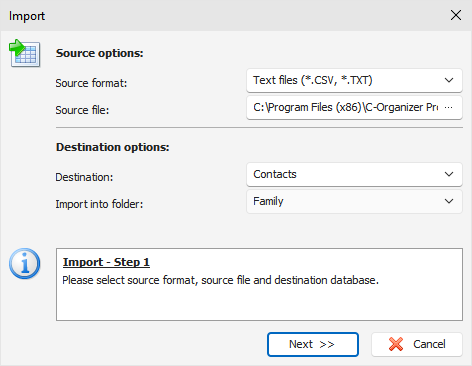


Choose the source format. C-Organizer supports following formats:

Text files (*.CSV, *.TXT);

C-Organizer databases (*.CDB);

Choose a source file.

If you have chosen a text file as a source, set the import file destination. When selecting other source type, this option is set automatically and cannot be changed.

Besides, when importing data from the text files, you can specify the destination folder.


If you have chosen the C-Organizer databases source format, click the Import button, and a dialog box showing the importing process will appear.
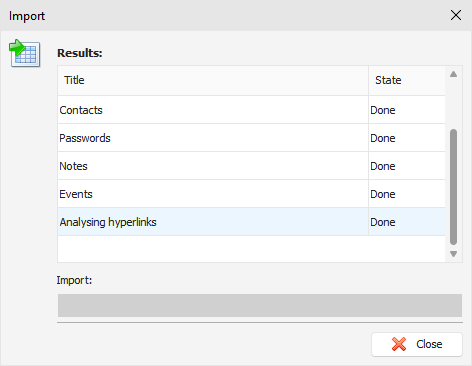


You will get a notification message when the import is complete.


If you have chosen text files as a source, click the "Next button.


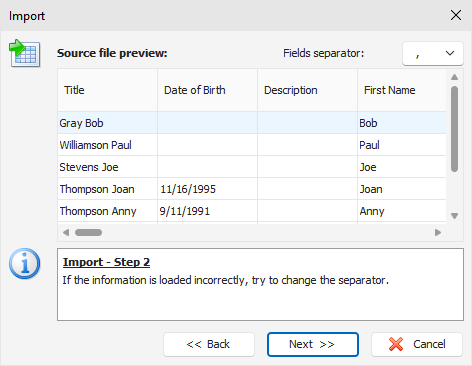
Step 2.


This window shows a table filled with information from your source file. If the information is loaded incorrectly, try to change the fields' separator.

Then click the Next button.


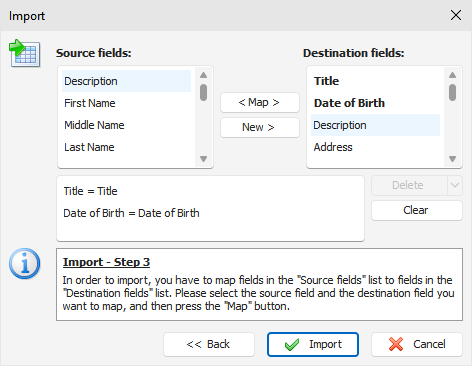
Step 3.


In this dialog box you need to match the source fields to the destination fields.

To map fields, please select the source field and the destination field you want to map, and then press the "Map" button.


For the Contacts only:

If you cannot find an appropriate Destination field to map, you can create a new one. Just click the "New" button, enter field name and select field type.


Please note that you can map more than one Source filed to a Destination field.

All mapped fields are listed in the bottom box. You can delete mapped fields by pressing the "Delete" button, or clear all mapped fields by pressing the "Clear" button.

Important: the unmapped fields won't be imported.


When you complete fields mapping, click the "Import" button. You will see the next window with the results:
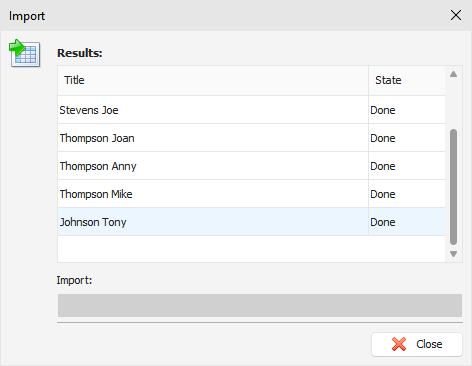


You will get a notification message when the action is complete.


Copyright CSoftLab 2000-2012 All Rights Reserved.

Converted from CHM to HTML with chm2web Standard 2.85 (unicode)