|
C-Organizer has a powerful
database search
function. To find any text in
the database entries, click the "File - Find" main menu item or use the Ctrl + F shortcut.
You
will see a dialog box:
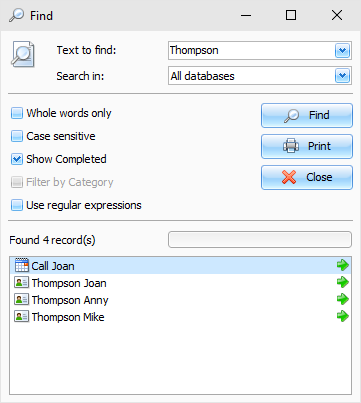
Enter
the text you wish to find and specify where to search in.
For
your convenience, the C-Organizer "remembers" your last 10 search
strings.
You
can choose the additional options:
Whole words only
- search only whole words, which
match to search string.
Case sensitive
- case sensitive search
string.
Show Completed
- this option is actual when you
search within the Calendar and Tasks sections.
Filter by Category
- if your entries are filtered by
category, this option will be enabled. You can use or remove filter
for search results.
User regular
expressions - you can add a
special symbols to search string.
Click
the "Find" button.
The search result will be displayed in the lower part of the dialog
box.
We've
added an ability to print search results. Just click the
"Print" button and a printable report with a list of
found records will be created.
About regular expressions in
short:
Wildcards
The
known wildcards _ and % match any single character and a string of any
length, respectively:
'Birne' similar to 'B_rne' --
true
'Birne' similar to 'B_ne' -- false
'Birne' similar to 'B%ne' -- true
'Birne' similar to 'Bir%ne%' -- true
'Birne' similar to 'Birr%ne' -- false
Character Classes
A
bunch of characters enclosed in brackets define a character class.
A character in the string matches a class in the pattern if the
character is a member of the class:
'Citroen' similar to 'Cit[arju]oen' --
true
'Citroen' similar to 'Ci[tr]oen' -- false
'Citroen' similar to 'Ci[tr][tr]oen' --
true
As
can be seen from the second line, the class only matches a single
character, not a sequence. Within a class definition, two
characters connected by a hyphen define a range. A range comprises
the two
endpoints and all the characters that lie between
them in the active collation. Ranges can be placed anywhere in the
class definition without special delimiters to keep them apart from
the other elements.
'Datte' similar to 'Dat[q-u]e' -- true
'Datte' similar to 'Dat[abq-uy]e' -- true
'Datte' similar to 'Dat[bcg-km-pwz]e' --
false
Quantifiers
A
question mark immediately following a character or class indicates
that the preceding item may occur 0 or 1 times in order to
match:
'Hallon' similar to 'Hal?on' -- false
'Hallon' similar to 'Hal?lon' -- true
'Hallon' similar to 'Halll?on' -- true
'Hallon' similar to 'Hallll?on' -- false
'Hallon' similar to 'Halx?lon' -- true
'Hallon' similar to 'H[a-c]?llon[x-z]?' --
true
An
asterisk immediately following a character or class indicates that
the preceding item may occur 0 or more
times
in order to match:
'Icaque' similar to 'Ica*que' -- true
'Icaque' similar to 'Icar*que' -- true
'Icaque' similar to 'I[a-c]*que' -- true
'Icaque' similar to '_*' -- true
'Icaque' similar to '[[:ALPHA:]]*' -- true
'Icaque' similar to 'Ica[xyz]*e' -- false
A
plus sign immediately following a character or class indicates that
the preceding item must occur 1 or more times in order to
match:
'Jujube' similar to 'Ju_+' -- true
'Jujube' similar to 'Ju+jube' -- true
'Jujube' similar to 'Jujuber+' -- false
'Jujube' similar to 'J[jux]+be' -- true
'Jujube' sililar to 'J[[:DIGIT:]]+ujube' --
false
|