Home
C-Organizer Professional Online Help Prev Page Next Page
General information
About C-Organizer Pro
Features overview
Installation and system requirements
How to upgrade C-Organizer v2.x to further versions
Multilanguage interface
Information about updates
Working with C-Organizer Pro
Overview
C-Organizer Pro overview
How to use a calendar
Sharing Data on a Network
How to share Data on a Network
Appointments
Appointments - Overview
Appointments - Adding/Editing appointment
Appointments - deleting appointments
Appointments - Reminder
Appointments - Print
Tasks
Tasks - Overview
Tasks - Adding/Editing task
Tasks - deleting tasks
Tasks - Reminder
Tasks - Print
Address Book
Address Book - Overview
Address Book - Adding/Editing record
Address Book - using templates
Address Book - deleting record
Address Book - Reminder
Address Book - Print
Phone Dialer
Passwords
Passwords - Overview
Passwords - Adding/Editing record
Passwords - deleting record
Passwords - Print
Notes
Notes - Overview
Notes - Adding/Editing note
Notes - deleting note
Notes - Print
Events
Events - Overview
Events - Adding/Editing record
Events - deleting event
Events - Reminder
Events - Print
How to preview a record and to work with stickers
Working with text and descriptions
Creating and editing print templates
Previewing and printing report
Alarm - additional options
Recurrence - advanced options
Program's options
General options
Sound initial options
Additional options
Backup options
Notifications options
Preferences
Appointments
Tasks
Address Book
Events
Reminders
Working with databases
Database manager
Search in database
Import
Export
Backup
Restore
How to protect your information by password
Today window
Today window - Overview
Today window - Print
Copyright and License
Registration
How to order C-Organizer Professional
Limitations of evaluation version
Technical support
Technical support


Passwords – Adding/Editing record


To add a new record, press the button or double click the empty line inside the viewing area. You can also use shortcuts Ins or Ctrl + N.

To edit an already existing record press the button or double click the record you want to edit in the viewing area. You can use shortcuts Enter or Ctrl + E as well.


Dialog box for working with passwords:
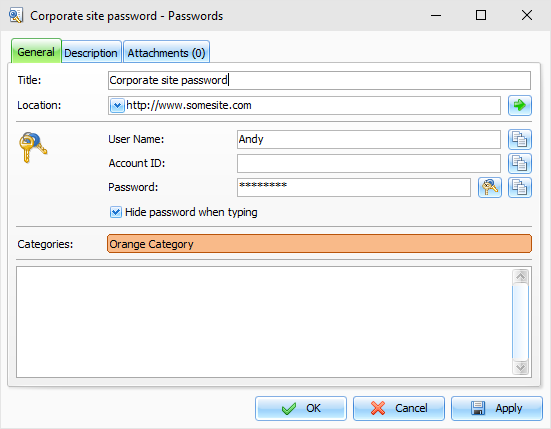


The description of information input fields:


Title – the record’s title.

Location – use this field to store URL link or file path. This will enable a quick access to a linked document.

The User name, Account ID and Password fields are intended for storing the appropriate information.

The “Hide password when typing” option can be used to make password viewing impossible while entering it. Special symbols will replace the actual password on the screen.


Description – use this field to enter an additional task information and its description. The description field supports rich text formatting (RTF), pictures, tables and hyperlink insertion. See “Working with text and descriptions” chapter for details.


Copyright © CSoftLab™ 2000-2007 All Rights Reserved.

Browser Based Help. Published by chm2web software.