|
For
your convenience Advanced Diary provides an opportunity to place
and preview your records as electronic sticker notes on the
monitor.
To
display the record as a sticker note on your monitor, click the
"Records -
Show as Sticker" program main
menu item.
The sticker window looks as following:
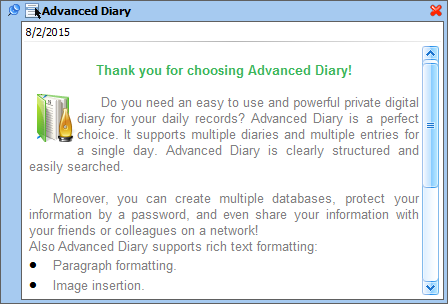
You
can change the stickers window size,
position, type (always
on top of all windows or no), color and transparency level.
To
change the windows type use, the  button. By clicking the
"Close" button you can close the sticker.
button. By clicking the
"Close" button you can close the sticker.
If
you click the  button, the pop-up menu with the additional
functions will appear: button, the pop-up menu with the additional
functions will appear:
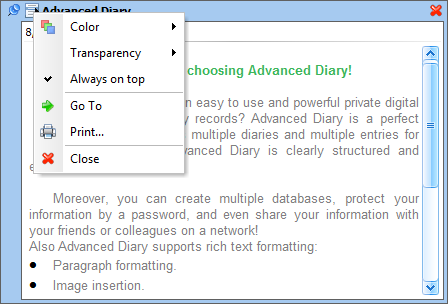
Color - a stickers color change. You can chose between 15
preset colors given or select any custom color.
Transparency
- sets the window transparency
level.
Always on top
- when this option is on, the sticker
will be displayed on the top of all other windows.
Go To - opens the main program window and places cursor
on the record.
Edit - opens the entry for editing.
Print - using this function you can print the sticker's
content.
Close - closes the sticker window.
Besides, you can move to the record currently
viewed as a sticker by clicking the mouse at the title inside the
sticker.
You
can hide, show or close all opened stickers, if necessary. You can
find these functions in the program's main menu:
Click the "Records - Hide/Show all
stickers" main menu item to
hide or show opened stickers, or "Records - Close all
Stickers" main menu item to
close all opened stickers.
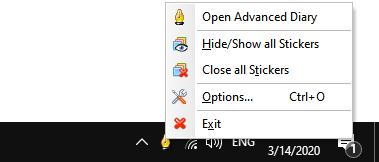
Also these functions are available in
Advanced Diary menu in system tray:
Note:
The
stickers content is available only for reading.
|