|
Advanced Diary has the "Favorites"
feature. You can add any entry into the Favorites list and then
open this entry with just one mouse click.
Adding
Favorites
To add any entry to Favorites,
select this entry and click the "Favorites - Add to
Favorites" main menu
item.
"Add to
Favorites" window will be
opened:
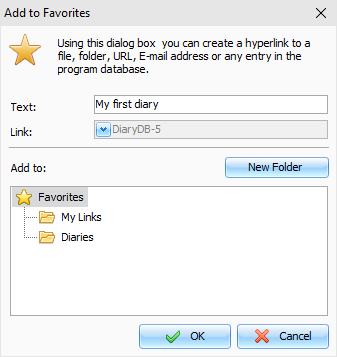
Here you can enter a favorite text
(optionally) and select a folder where a new favorite link will be
added. If necessary, you can create a new folder by pressing an
appropriate button.
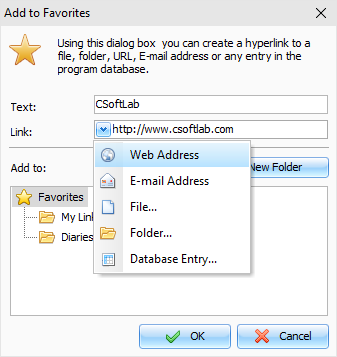
Please note, that you can create a
link not
only to any entry in Advanced Diary database! You can create a favorite entry, which links to
any file, folder, Internet or Email address. Just select an
appropriate link type:
When the new favorite is added, it
becomes available in the "Favorites" main menu item:
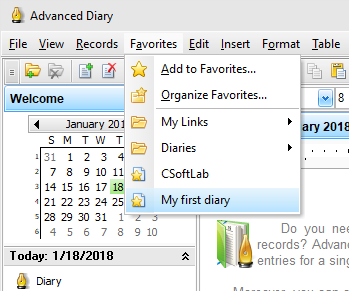
Just click it, and associated
entry will be opened!
Organizing
Favorites
To sort, rename, delete your
favorites, or move them to folders, click the "Favorites - Organize
Favorites" main menu
item.
"Organize
Favorites" window will be
opened:
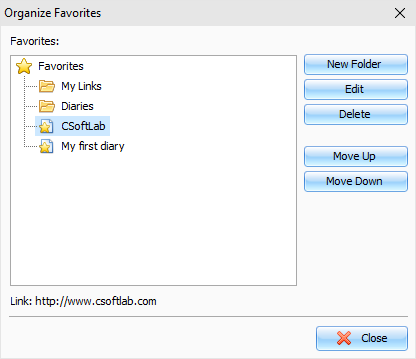
To create a new folder, click the
"New
Folder" button.
To rename any folder or favorite
entry, click the "Edit" button.
To delete any folder or favorite
entry, click the "Delete".
You can change the favorites
order. Just select any entry or folder and click the
"Move
Up" or "Move Down" buttons.
To move entries into a different
folder, simply drag and drop this entry by mouse into an
appropriate folder.
|